
How to Use GitLab CI in Docker
Installing GitLab on Docker
Refer to the official documentation to write the Docker Compose file.
version: '3.7'

services:
  GitLab-Server:
    image: 'gitlab/gitlab-ee:latest'
    container_name: GitLab-Server
    environment:
      GITLAB_OMNIBUS_CONFIG: |
        external_url 'http://127.0.0.1:5080/'
        nginx['listen_port'] = 80
        gitlab_rails['gitlab_shell_ssh_port'] = 5022
    ports:
      - 5080:80
      - 5443:443
      - '5022:22'
    privileged: true
    volumes:
      - .\Volumes\GitLab-Server\Config:/etc/gitlab
      - data:/var/opt/gitlab
      - .\Volumes\GitLab-Server\Logs:/var/log/gitlab
    shm_size: '256m'
    networks:
      default:
        ipv4_address: 172.20.0.2
    restart: always
volumes:
  data:
networks:
  default:
    driver: bridge
    ipam:
      driver: default
      config:
        - subnet: 172.20.0.0/16
gateway: 172.20.0.1- Navigate to the directory containing
docker-compose.ymland rundocker-compose up -dto start the container. - Wait a few minutes, then access the GitLab Web interface at
http://127.0.0.1:5080. The default account isroot, and the password is stored in the file/srv/gitlab/config/initial_root_password. - Click the avatar in the top right corner > preferences > password to change it to something memorable, then log in again.
TIP
- If
external_urlis not set, you can still connect to the web page, but some features may not work correctly. Additionally, the domain may not be the IP you set, but rather a string of alphanumeric characters, or you may encounter issues with the repository clone URLs provided for SSH/HTTP. - It is best to set
external_urlto an external IP or Domain Name. We use127.0.0.1here because, although an IP is specified, connecting via the host's IP sometimes fails (the cause is currently unknown). - When
external_urlis set and you are using a port other than 80, you must setnginx['listen_port'] = 80. If using HTTPS, change this to443. For detailed reasons, please refer to this article. - You can change the 50xx ports as needed. If you encounter an "invalid port specification" error, refer to Invalid port specification: 601342 and wrap
5022:22in quotes. - The port settings in
external_urlandgitlab_rails['gitlab_shell_ssh_port']must be consistent with theportsmapping. - Regarding the
/var/opt/gitlabvolume binding: although the official website uses "Bind Mount," the "artifacts" feature may fail due to permission issues, so using a "Volume" is recommended.
GitLab Configuration
GitLab currently provides two configuration methods:
gitlab.rb: Stored under/srv/gitlab/config/. After changing settings, rungitlab-ctl reconfigureto apply the changes.- Pre-configure: Set the
GITLAB_OMNIBUS_CONFIGenvironment variable in Docker. This setting does not overwritegitlab.rbbut updates the GitLab configuration every timedocker runordocker-compose upis executed. For a full list of supported settings, please refer to gitlab.rb.template.
Installing GitLab Runner on Docker
For installation methods, refer to the official documentation to set up docker-compose. Here, we add the GitLab Runner content to the existing docker-compose.yml.
GitLab Runner section in docker-compose.yml:
services:
  GitLab-Server:
#...GitLab-Server content omitted...
  GitLab-Runner:
    image: gitlab/gitlab-runner:latest
    container_name: GitLab-Runner
    privileged: true
    volumes:
      - /var/run/docker.sock:/var/run/docker.sock
      - .\Volumes\GitLab-Runner\Config:/etc/gitlab-runner
    networks:
      default:
        ipv4_address: 172.20.0.3
    restart: always
#...volumes and networks content omitted...TIP
If you are using the Docker Executor, you need to set /var/run/docker.sock:/var/run/docker.sock.
Registering GitLab Runner
Run the command docker exec -it GitLab-Runner gitlab-runner register. The first "GitLab-Runner" (capitalized) is the container_name set in docker-compose, and the second "gitlab-runner" (lowercase) is the gitlab-runner.exe command. When executing register, the command line will prompt you to initialize the Runner settings:
Enter the GitLab instance URL => The URL for the Runner to connect to GitLab, e.g.,
http://172.20.0.2as in the example above. Theoretically, the token page provides a URL to copy, but ifexternal_urlis not set or is set to127.0.0.1orlocalhost, that URL may not work correctly.Enter the registration token => GitLab has three types of Runner scopes. See The scope of runners. Token locations are as follows:
Scope Description Token Location Shared Runner Available to all projects. GitLab Admin Area > Overview > Runners > Click "Register an instance runner" to display the token. Group Runner Available only to a specific group. CI/CD > Runners > Click "Register a group runner" to display the token. Project-Specific Runner Available only to a specific project. Settings > CI/CD > Expand Runners > Specific runners section displays the token. Enter a description for the runner: A simple description of the Runner's purpose. This will be the Runner's name, which can be changed later in the GitLab UI.
Enter tags for the runner (comma-separated): Enter the Runner's environment, executor, etc., so GitLab CI can find a matching Runner. This can be changed later in the GitLab UI.
Enter optional maintenance note for the runner: Enter information for other developers/maintainers. You can leave this blank.
Enter an executor: ssh, docker+machine, docker-ssh+machine, kubernetes, virtualbox, custom, docker, docker-ssh, parallels, shell: Enter the build environment method. For example, enter
dockerto use a Docker container for testing. See Executors for details. If the Runner is installed on Windows,docker-windowsis available, though support is currently limited.Enter the default Docker image: If you enter
docker, this prompt appears. Enter the default Docker image, e.g.,docker:stable.
After configuration, a config.toml file will be generated in \srv\gitlab-runner\config. If you update the configuration file, you would normally use gitlab-runner restart, but since the Runner is running in Docker, the official recommendation is to use docker restart GitLab-Runner (replace with your actual container name).
For registration methods on various platforms, see Registering runners. For Runner settings, see Configuring GitLab Runner.
Simple GitLab CI Example (Linux)
Prerequisites
Create a Repository named "TestCore".
Clone "TestCore" to your local machine.
Create a .NET 6 project in "TestCore" with the following structure:
textTestCore │ .gitignore │ .gitlab-ci.yml │ README.md │ └───build │ │ Dockerfile │ └───src │ └───TestCore │ TestCore.sln │ TestCore │ ...Register a Runner for "TestCore" using the Docker Executor with tags
dockerandlinux. Openconfig.tomland adjust the following:- Set
privilegedtotrue. - Set
volumesto["/var/run/docker.sock:/var/run/docker.sock", "/cache"]to allow the Runner Executor to use the host's Docker Engine. - If GitLab has no
external_urlor is set to127.0.0.1/localhost, you must addclone_url. - Set
network_modetogitlab_defaultso the Runner Executor can connect to GitLab.
- Set
The complete content is as follows:
concurrent = 1
check_interval = 0

[session_server]
  session_timeout = 1800

[[runners]]
  name = "Run Linux Docker"
  url = "http://172.20.0.2"
  id = 1
  token = "dayFwyc86q4TdQzYz_Ca"
  token_obtained_at = 2022-10-19T07:09:03Z
  token_expires_at = 0001-01-01T00:00:00Z
  clone_url = "http://172.20.0.2"
  executor = "docker"
  [runners.custom_build_dir]
  [runners.cache]
    [runners.cache.s3]
    [runners.cache.gcs]
    [runners.cache.azure]
  [runners.docker]
    tls_verify = false
    image = "docker:stable"
    privileged = true
    disable_entrypoint_overwrite = false
    oom_kill_disable = false
    disable_cache = false
    volumes = ["/var/run/docker.sock:/var/run/docker.sock", "/cache"]
    shm_size = 0
network_mode = "gitlab_default"WARNING
network_mode cannot be set to host, otherwise the Runner might cause GitLab to become unresponsive during execution.
Dockerfile content:
FROM mcr.microsoft.com/dotnet/sdk:6.0

WORKDIR /app
COPY ./publish ./

EXPOSE 80

ENV ASPNETCORE_URLS "http://+:80"

ENTRYPOINT ["dotnet", "TestCore.dll"].gitlab-ci.yml content:
stages:
  - build
  - list
  - deploy

build-job:
  stage: build
  image: mcr.microsoft.com/dotnet/sdk:6.0
  tags:
    - 'docker'
    - 'linux'
  script:
    - cd src/TestCore
    - dotnet restore
    - dotnet build --configuration Release
    - dotnet publish --configuration Release --output ../../build/publish
  artifacts:
    paths:
      - ./build/publish/*
    expire_in: never

list-job:
  stage: list
  image: bitnami/git:latest
  script:
    - git config --global core.quotepath false
    - git diff-tree -r --no-commit-id --name-status --diff-algorithm=minimal HEAD > changes.txt
  artifacts:
    paths:
      - ./changes.txt
    expire_in: never
  tags:
    - 'docker'
    - 'linux'

deploy-job:
  stage: deploy
  tags:
    - 'docker'
    - 'linux'
  variables:
    CONTAINER_RELEASE_IMAGE: $CI_PROJECT_PATH_SLUG:latest
  script:
    - cd build
    - docker build --tag $CONTAINER_RELEASE_IMAGE .
    - docker stop $CI_PROJECT_NAME || true && docker rm $CI_PROJECT_NAME || true
    - docker run -d -p 9080:80 --restart=always --name $CI_PROJECT_NAME $CONTAINER_RELEASE_IMAGE
  environment:
    name: production
url: http://127.0.0.1:9080.gitlab-ci.yml Explanation
This example simplifies the branching logic.
Keywords
stages: Defines the names and order of stages to execute.job: e.g.,build-jobanddeploy-job.stage: Sets which stage the job belongs to.tags: Specifies the Runner to use. If no matching Runner is found, the job will hang until timeout.image: Since we use the Docker Executor, each stage is a Docker container. This sets the image for the stage. If not set, the Runner's default image is used.variables: Variable declarations.script: Command script to execute in the Runner.artifacts: Files and directories to attach to the job upon success. Since each stage is an independent container, we upload build results to be downloaded by the next stage.paths: File paths to upload.expire_in: Retention time.
environment: Deployment environment settings.name: Environment name.url: External URL.
Process Explanation
build-job
- Uses
mcr.microsoft.com/dotnet/sdk:6.0. This should match the image used in the Dockerfile. - Downloads the repository files.
- Changes directory to the project folder.
- Uses
dotnet restoreto restore packages. - Uses
dotnet buildto build the project. - Uses
dotnet publishto publish the project to the output folder. artifactspreserves the output files.
list-job
- Uses
git config --global core.quotepath falseto prevent special character translation. - Generates a change list. Command explanation:
git diff-tree: Compares differences between nodes.-r: Recursive.--no-commit-id: Hides Commit ID.--name-status: Shows only file names and status.--diff-algorithm=minimal: Uses minimal diff algorithm.HEAD: Last commit of the current branch.
deploy-job
- No image defined, so it uses the Runner's
docker:stable. - Downloads the repository files and the
artifactsfrom the previous stage. - Changes directory to
build. - Uses
docker buildto build the image. - Removes any existing container with the same name.
- Uses
docker runto start the container. environmentprovides the URL for the deployment environment.
Execution Results
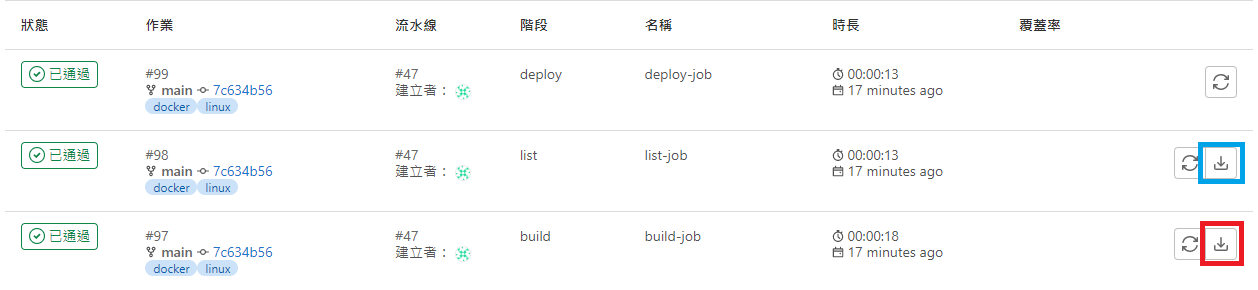
CI/CD > Jobs
If a stage uploads files to artifacts, a download icon will appear. The blue box downloads the change list, and the red box downloads the compiled files.
Deployments > Environments
Displays an available environment. Clicking "Open" will open the page at http://127.0.0.1:9080.

WARNING
- Some approaches use
Docker in Docker (DIND). However, I am unsure how to expose containers created this way to the outside. Therefore, I chose to mapdocker.sockin the Runner'sconfig.toml, which mounts the created images and containers to the host's Docker engine. - Variables starting with
CI_are internal system variables. See Predefined variables reference. - Official examples use
CI_REGISTRYvariables, which require HTTPS and Access Tokens. This is not covered here. - Image names must be lowercase. Since the repository name in the example contains uppercase letters, we use
CI_PROJECT_PATH_SLUG.
References
The .gitlab-ci.yml fileEnvironments and deploymentsgitlab-ci build asp.net core docker.Net & Docker (1) Running .Net Core API in a Docker container
Change Log
- 2022-10-24 Initial version created.